Tasks section overview
Tasks section enables a user to observe, edit, add and delete tasks, users and roles within the organization.
The Tasks section consists of the following subsections:
-
Reviewing - enables the user to operate available tasks;
-
Uploading - enables the user to access the extended ECG upload options.
ECG data input
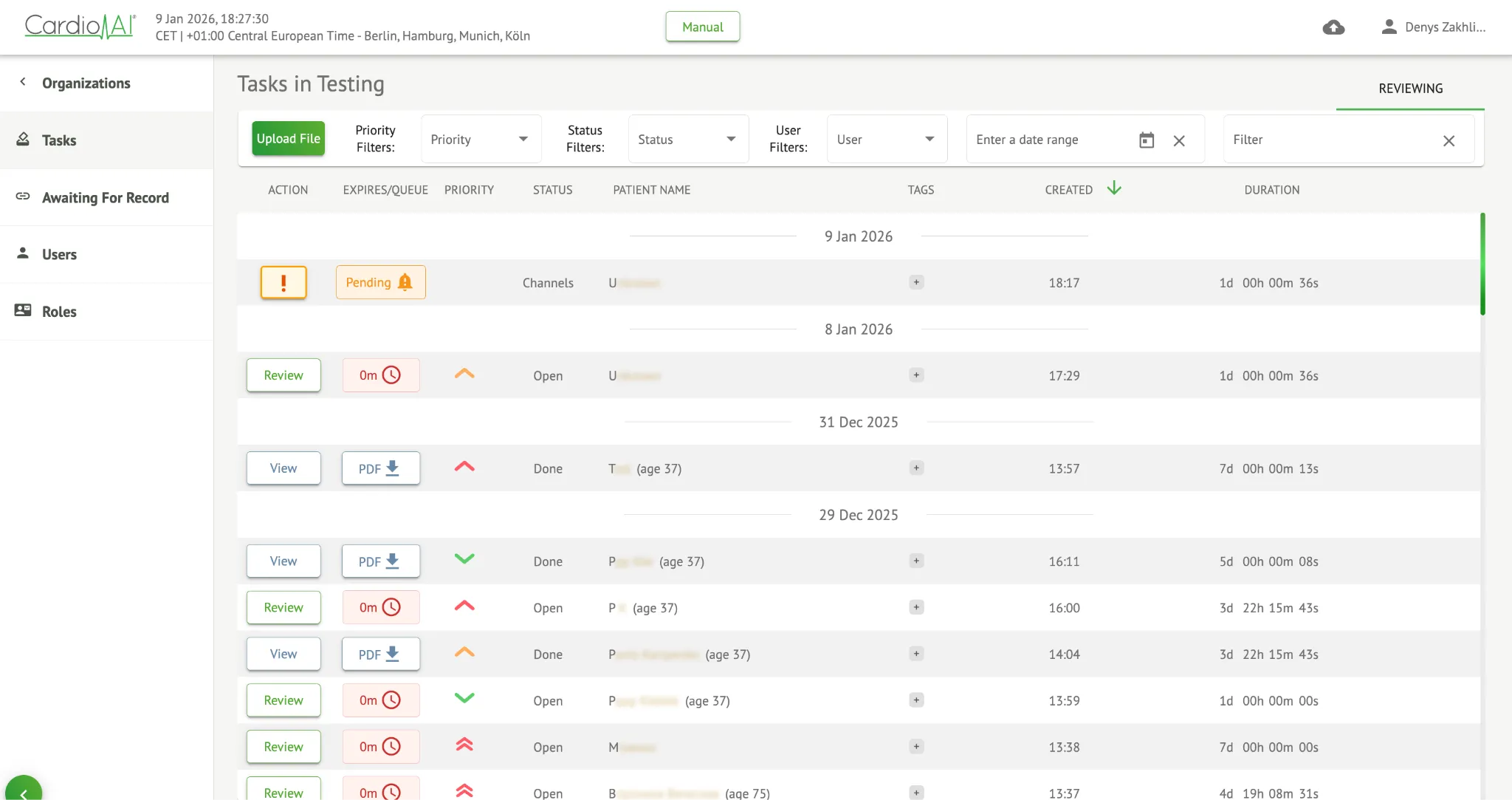
Section titled “ECG data input”The option to upload pre-recorded ECG is available under Upload File button or drag-n-drop. The option to upload multiple pre-recorded ECGs located in a folder is available under the Upload Folder button:

Cardio.AI shows the following screen when successful:
Reviewing subsection overview
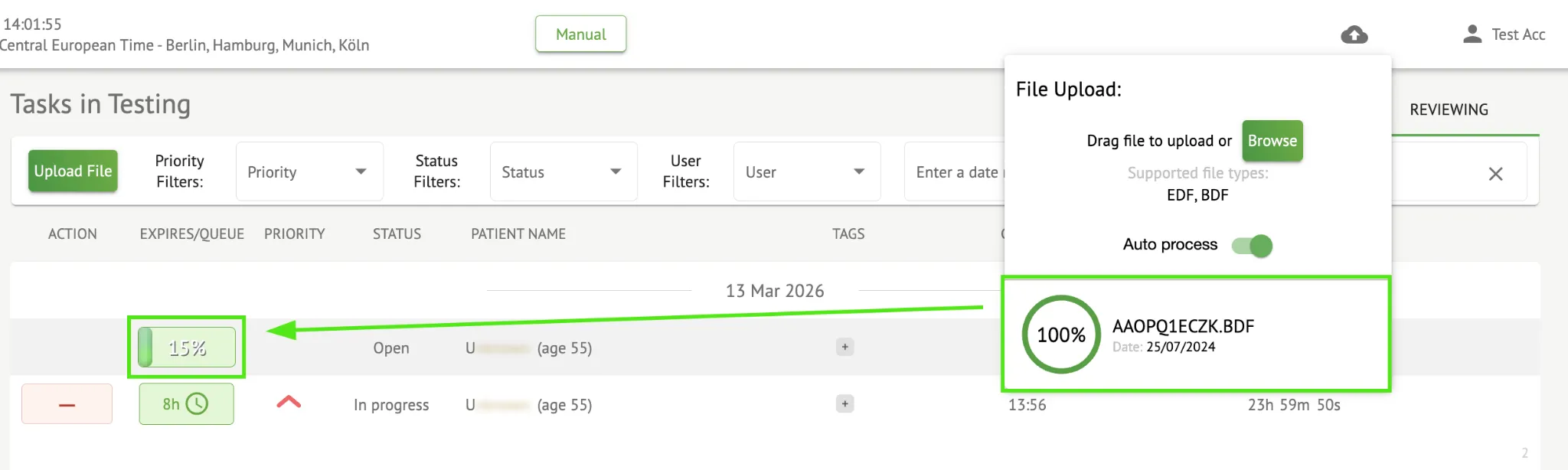
Section titled “Reviewing subsection overview”Under Reviewing, the following information is available for the user:
-
the available action to operate with tasks. The following actions are:
-
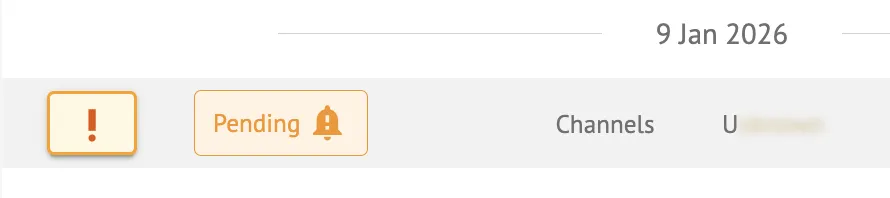
! - indicates an issue with channel labels, enables a user to fix them.
-
- indicates the inability to operate with a task due to technical difficulties.
-
Review - enables a user to edit the ECG task.
-
View - enables a user to observe the ECG task.
-
PDF - enables a user to download the report of the ECG task.
-
Note:
If an ECG record is uploaded or received without predefined channel (lead) assignment, the task will appear in the Reviewing subsection with a Pending status. In this case, user action is required to assign lead names before the ECG task can be reviewed or approved.

-
the expiration time of the task - indicates how many business hours is left for the task to expire. By default, 7 business hours are set for user to process the task,

-
task priority. Task priority serves a hint for a physician considering the prioritizing of ECG processing. In case the software intelligence detects important abnormalities, it sets the higher priority. The following priorities available: Highest, High, Medium, Low, Lowest, Unknown.

-
task status. The following statuses available:
Open - indicates that the task is available to be edited and no editing actions were applied.
In progress - indicates that the task is currently in the editing process. The status appears after saving changes to the task editing.
Pre-approved - indicates that the ECG task is pre-approved and is available for further editing.
Сhannels – indicates that the ECG task contains one or more channels without assigned lead names.
Tasks in Channels status cannot be reviewed or approved until all channels are properly labeled.
Done - indicates that the ECG report of the task is available to be downloaded and appears after approving the task.Canceled - indicates that the ECG task is canceled and is unavailable to be processed.
Error - indicates that the error appeared during ECG task processing after uploading.

-
patient’s name,

-
task tags - indicates the tags of the task (e.g., test), available to be found by task tag filter,

-
the date of last task update

-
the duration of the record within the task in time format.

The user is enabled to filter the tasks under Reviewing. The filter are available above the tasks:
The following filters are available:
-
Priority filters: available under Priority dropdown with the following priority filters available: Highest, High, Medium, Low, Lowest, Unknown.
-
Status Filters: available under Status dropdown, with the following status filters available: Open, In progress, Pre-approved, Done, Canceled, Error.
-
Assigned to: available under Assigned dropdown with the available users via the organization.
-
Date range: available under Enter date range calendar input field, with the option to enter dates manually or via calendar menu:
-
First/Second name - available under Filter input field, with the option to enter First/Second name of the user in the field.
-
Event - available under Filter input field, with the option to enter the Event in the field, starting with @ symbol.
-
Tag - available under Filter input field, with the option to enter the Event in the field, starting with # symbol;
-
Channel - available under Filter input field, with the option to enter the Event in the field, starting with $ symbol;
Reviewing subsection editing
Section titled “Reviewing subsection editing”Patient data editing
Section titled “Patient data editing”The user is enabled to edit personal data of the patient created with the task under the Edit personal data button:
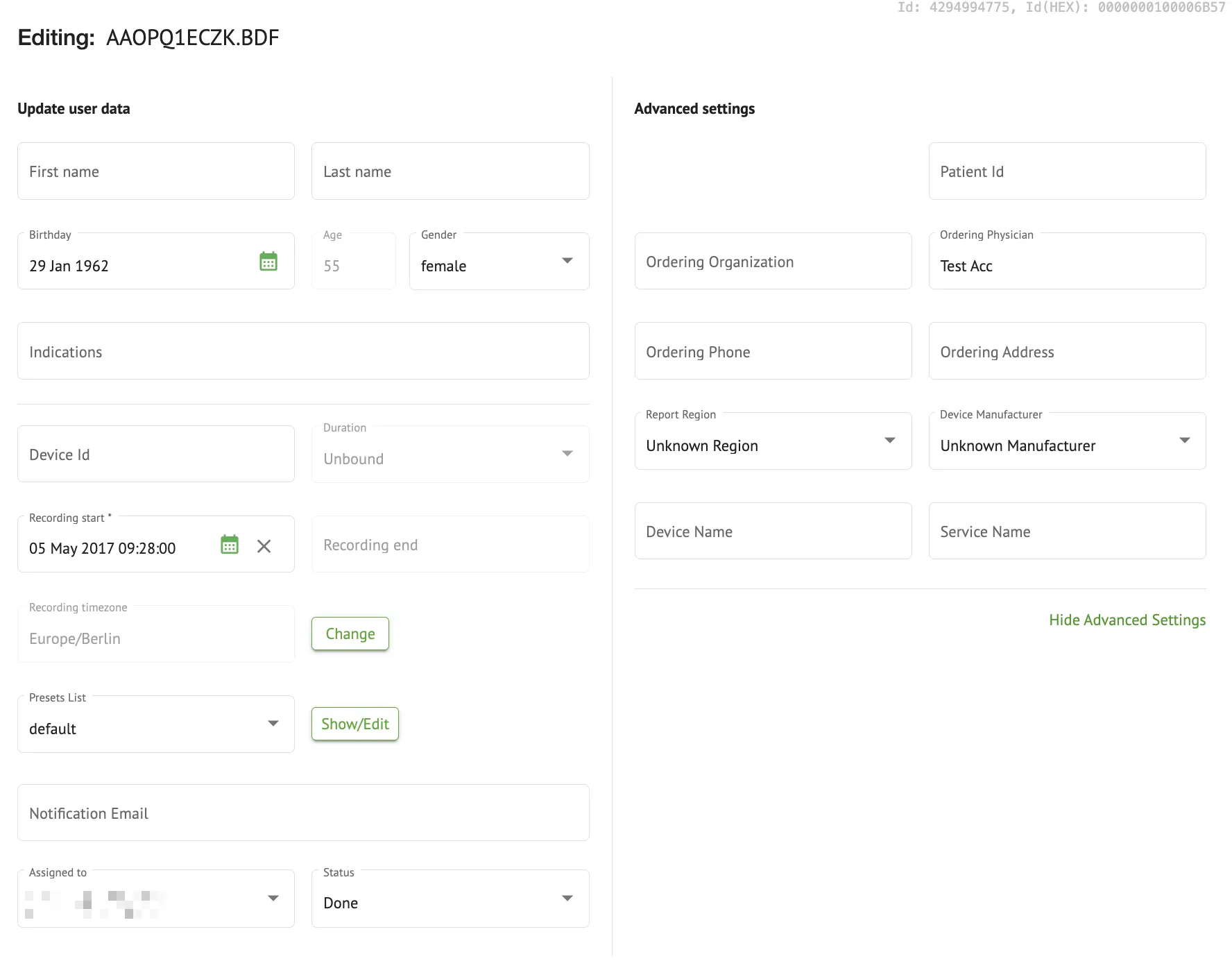
Editing menu consists of the Update user data section and Advanced settings section.
The following settings available to be edited under the Editing menu:
| Setting | Description |
| General section | |
| First name | Indicates the first name of the patient. |
| Last name | Indicates the last name of the patient. |
| Birthday | Indicates the date of birthday of the patient in the DD MMM YYYY format. The user is enabled to select the date of birthday under the Calendar view |
| Age | Indicates the age of the patient. This field is being modified by the system according to the changes with Birthday data. |
| Gender | Indicates the gender of the patient. The following genders available: • female; • male; • undifferentiated. |
| Indications | Provides the indications of the patient. |
| Device Id | Indicates the Device ID of the patient from which the ECG data was obtained. |
| Recording start | Indicates the date and time of the ECG recording start. |
| Duration | Indicates the duration of the ECG recording. The following values are available: • Unbound; • 1d; • 2d; • 3d; • 5d; • 7d; • 14d. |
| Presets list | Indicates the preset configuration of the report of the task, generated during the ECG task reviewing. The default value of the preset is default. The user is enabled to edit the presets. |
| Notification Email | Indicates the email address the generated task report will be sent to. The value by default corresponds to the value under User data. |
| Advanced settings | |
| Assigned to | Indicates the user the patient is assigned to. The available users correspond to the users within the organization. |
| Status | Indicates the status of the task. The following statuses available: • Open; • In progress; • Canceled; • Done. |
| UTC offset (minutes) | Indicates the timezone of the task. The option to set the timezone is available by filling in the field with the time of the time zone other than Greenwich in minutes. For a time zone west of Greenwich, a minus should be set in front of the number. Example: CET - 120. |
| Patient Id | Indicates the ID of the patient. |
| Ordering Organization | Indicates the name of the ordering organization of the patient. |
| Ordering Physician | Indicates the name of the ordering physician of the patient. |
| Ordering Phone | Indicates the name of the ordering phone of the patient. |
| Ordering Address | Indicates the address of the ordering organization of the patient. |
| Report Region | Indicates the region of the report of the task. The following regions available: • US; • Canada; • EU; • Ukraine; • Unknown region. |
| Device Manufacturer | Indicates the manufacturer of the device from which the ECG data was obtained. The following manufacturers available: • Life Signals; • Myant; • Cortrium; • Unknown Manufacturer. |
| Device Name | Indicates the name of the device from which the ECG data was obtained. |
| Service Name | Indicates the name of the service of the patient. |
Channels editing
Section titled “Channels editing”The option to edit channels is available under the Edit channels button:
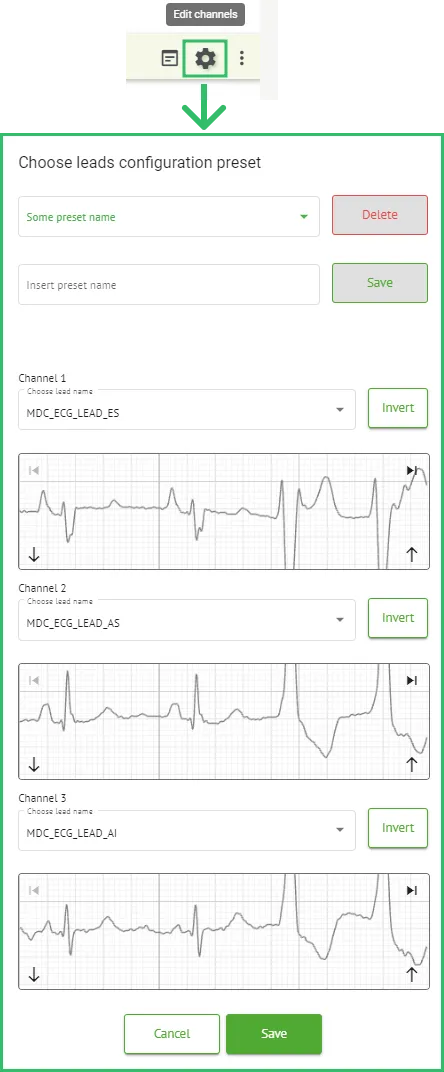
The visibility of the available channels depends on the method of ECG recording and the signal setting.
The following information can be changed under the Editing channels menu:
-
Preset name of the leads configuration:

-
Proposed preset name field;

-
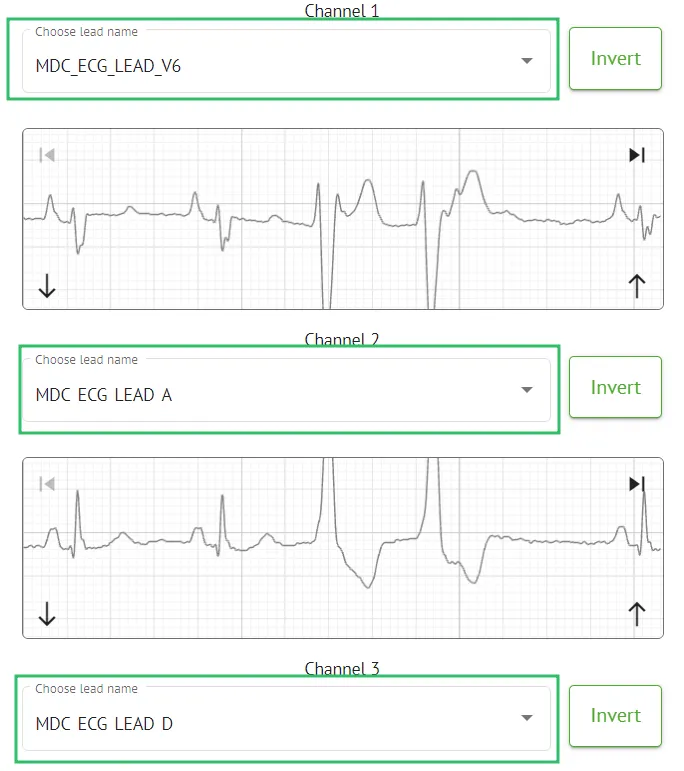
Name of the channel(s):
-
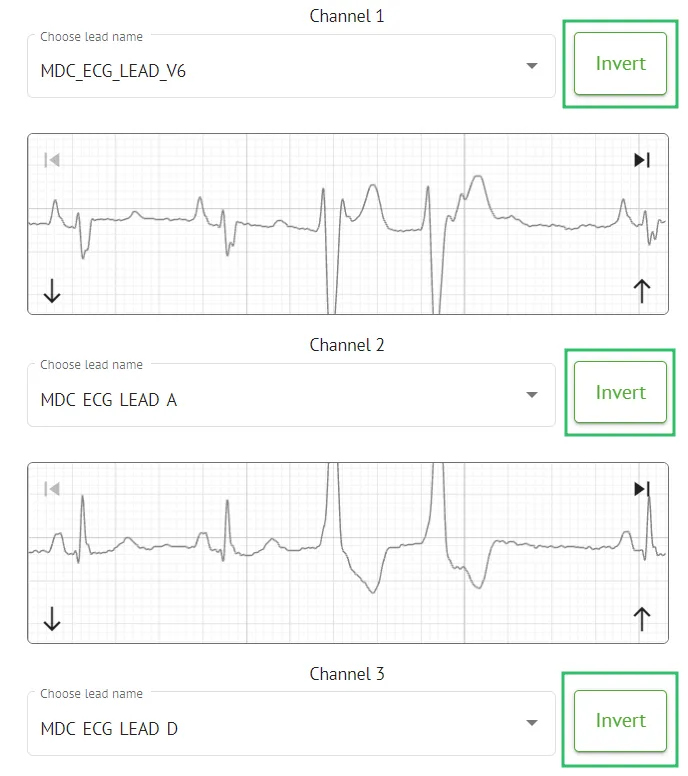
Inverting the signal of the channel:
The following lead (channel) names available:
-
MDC_ECG_LEAD_I;
-
MDC_ECG_LEAD_II;
-
MDC_ECG_LEAD_III;
-
MDC_ECG_LEAD_AVR;
-
MDC_ECG_LEAD_AVL;
-
MDC_ECG_LEAD_AVF;
-
MDC_ECG_LEAD_V1;
-
MDC_ECG_LEAD_V2;
-
MDC_ECG_LEAD_V3;
-
MDC_ECG_LEAD_V4;
-
MDC_ECG_LEAD_V5;
-
MDC_ECG_LEAD_V6;
-
MDC_ECG_LEAD_ES;
-
MDC_ECG_LEAD_AS;
-
MDC_ECG_LEAD_AI;
-
MDC_ECG_LEAD_A;
-
MDC_ECG_LEAD_D.
The option to save preset is available by filling the Preset name field, making changes and clicking the upper Save button: 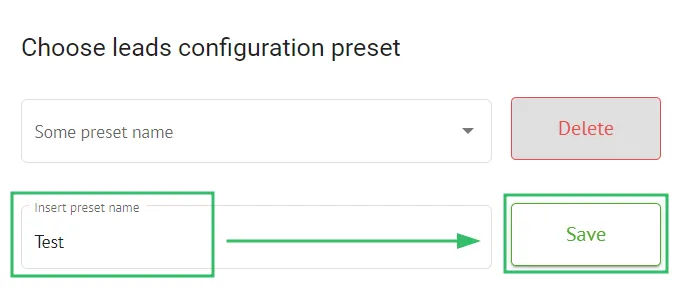
The option to apply changes to the task is available after clicking the lower Save button:
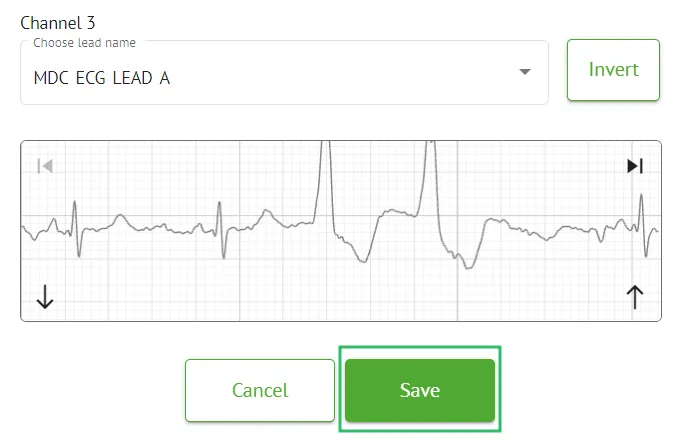
For correct ECG interpretation, each channel must be assigned a valid lead name.
If one or more channels are not assigned, the system prevents further task processing and displays a warning message prompting the user to complete lead configuration.
When attempting to save channel configuration with unassigned leads, the system displays a warning message indicating that all channels must be labeled before proceeding.
The ECG task becomes available for review only after all channels have been assigned valid lead names and the configuration has been saved successfully.
Task reclassification
Section titled “Task reclassification”The option to reclassify task is available under task options > Redo classification (overwrites data!) button > Confirm button:
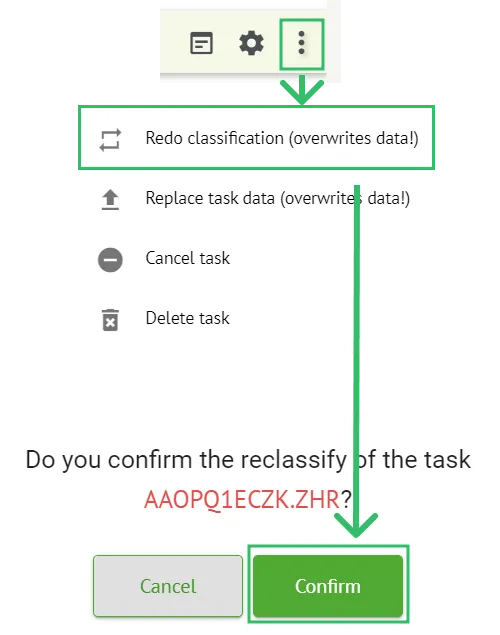
Note. The reclassification process will overwrite the existing data of the task (e.g., setted annotations)
Replacing task data
Section titled “Replacing task data”The option to reclassify task is available under task options > Replace task data (overwrites data!) button > select ECG file:
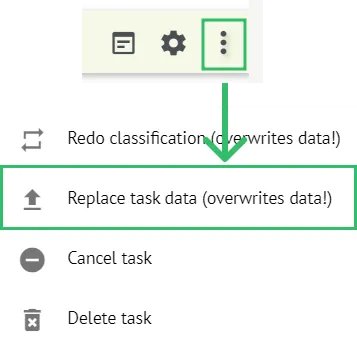
Note. The replacing process will overwrite the existing data of the task (e.g., setted annotations)
Task cancellation
Section titled “Task cancellation”The option to сancel task is available under task options > Cancel task button > Confirm button:
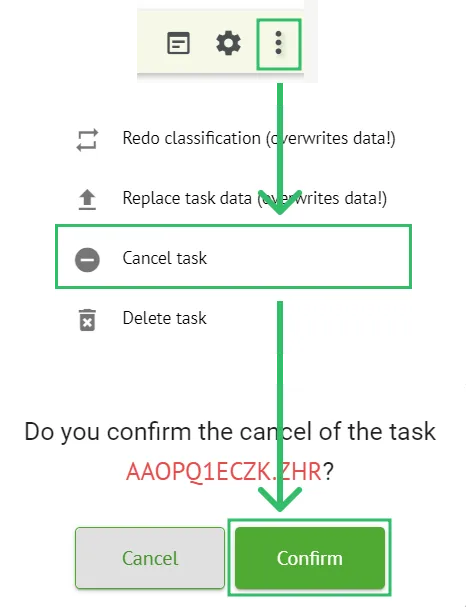
Note. The task cannot be edited after cancellation. The option to revert cancellation is available by Reclassification the task.
Task deletion
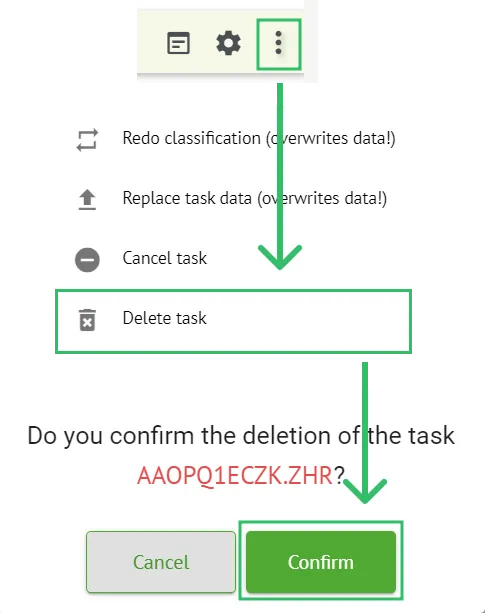
Section titled “Task deletion”The option to delete task is available under task options > Delete task button > Confirm button: