Roles section
Roles section overview
Section titled “Roles section overview”Users section enables a user to create, manage and delete a role within the organization.
The option to access Roles section is available under the Roles tab within the organization:
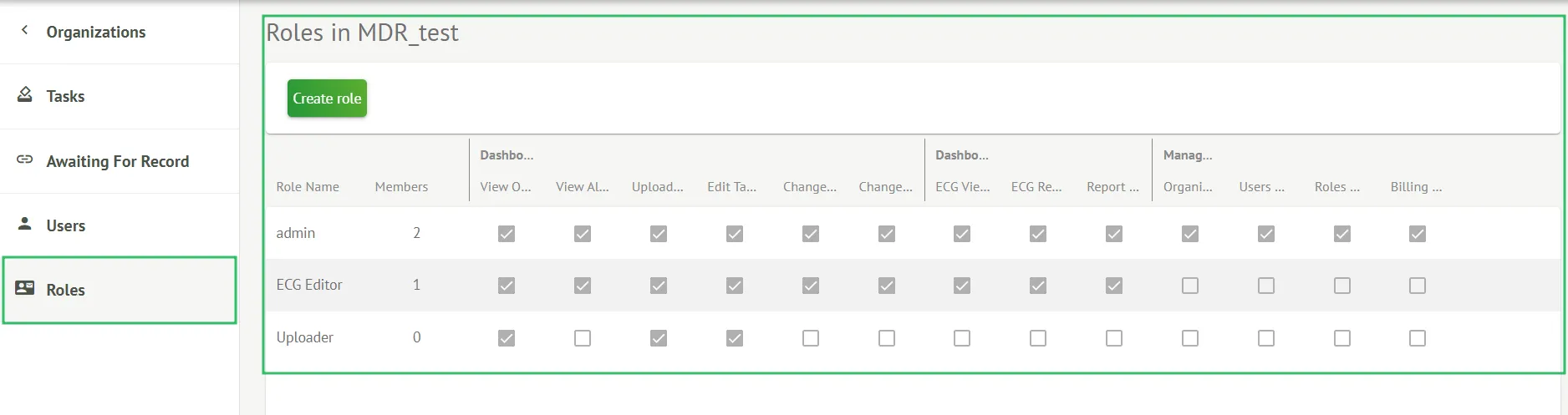
Cardio.AI creates a predefined set of roles while creating the organization. The default created roles are: Admin, ECG Editor and Uploader.
Roles section dashboard contains the following components:
| Setting | Description |
| Role Name | Indicates the name of the role. |
| Members | Indicates the number of users with the correspondent role. |
| Dashboard | |
| View Own Tasks | Enables a user to view the tasks the user uploaded ECG of, under the Reviewing subsection of Tasks.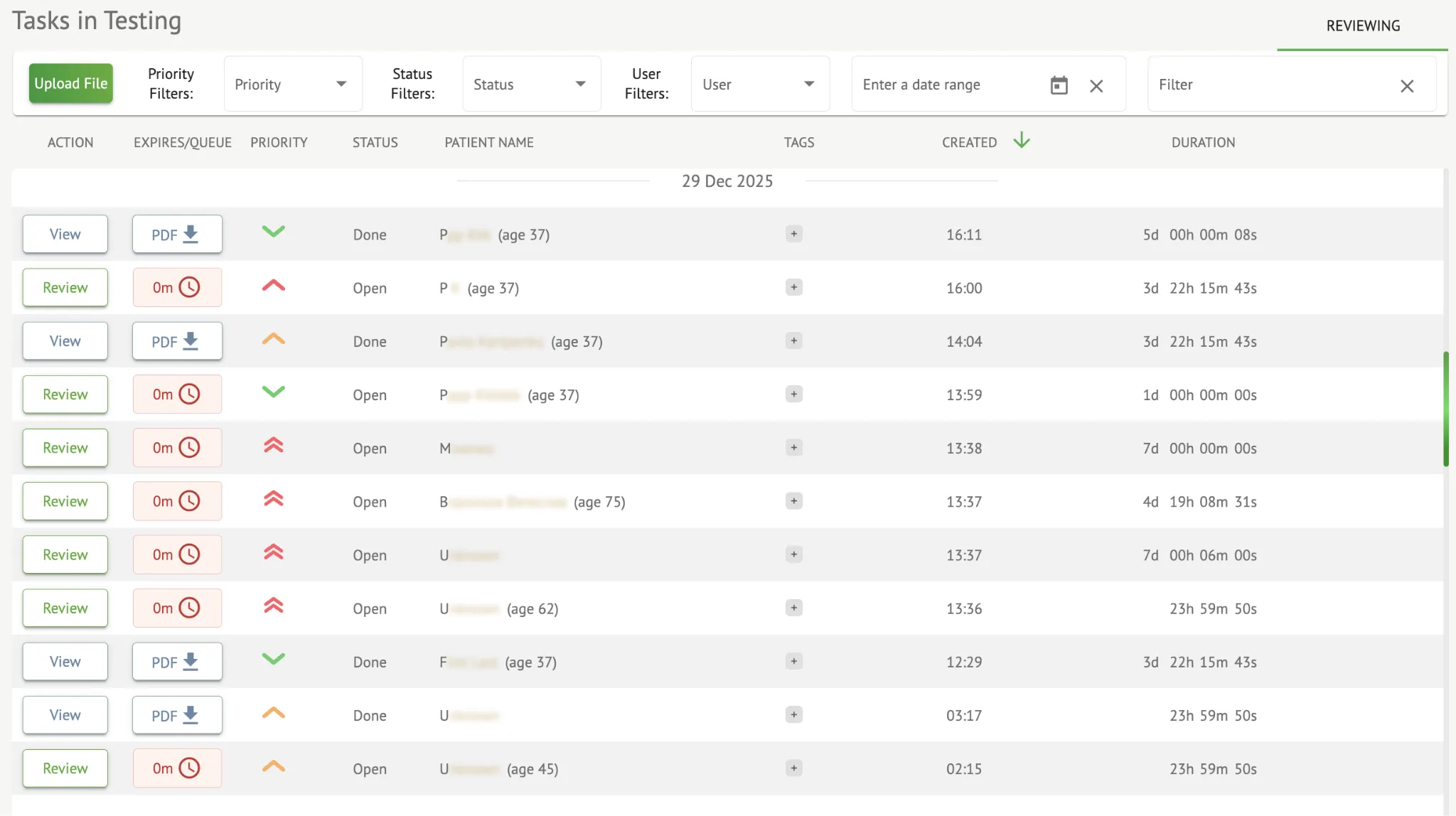 |
| View All Tasks | 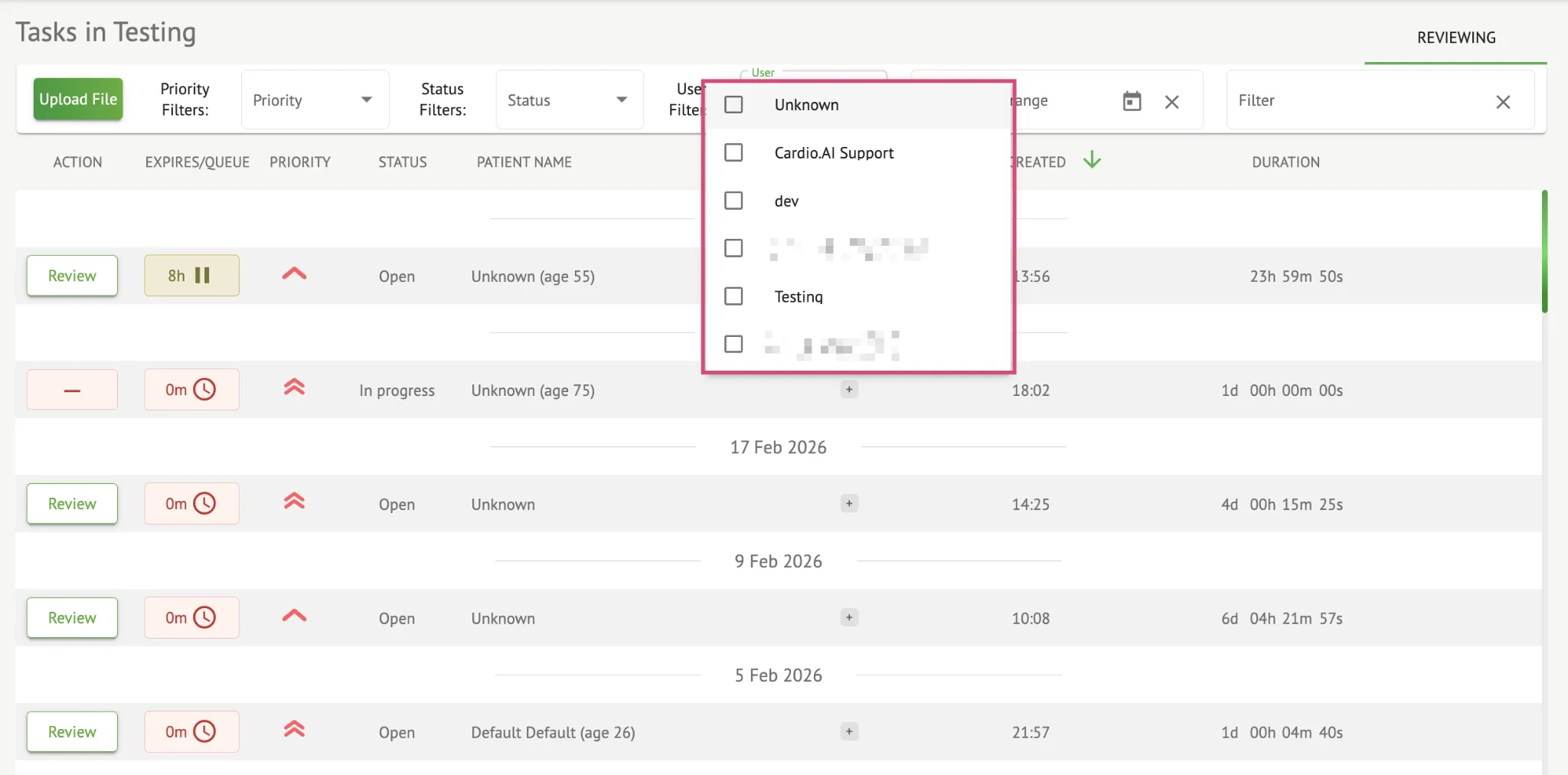 Enables a user to view the tasks initiated by all users within the organization of under the Reviewing subsection of Tasks. |
| Edit Tasks List | Enables a user to Edit personal data of the patient, Reclassify and Reupload the task data. |
| Change Reviewer | Enables a user to change Assigned to user of the task. under the Edit personal data of the patient.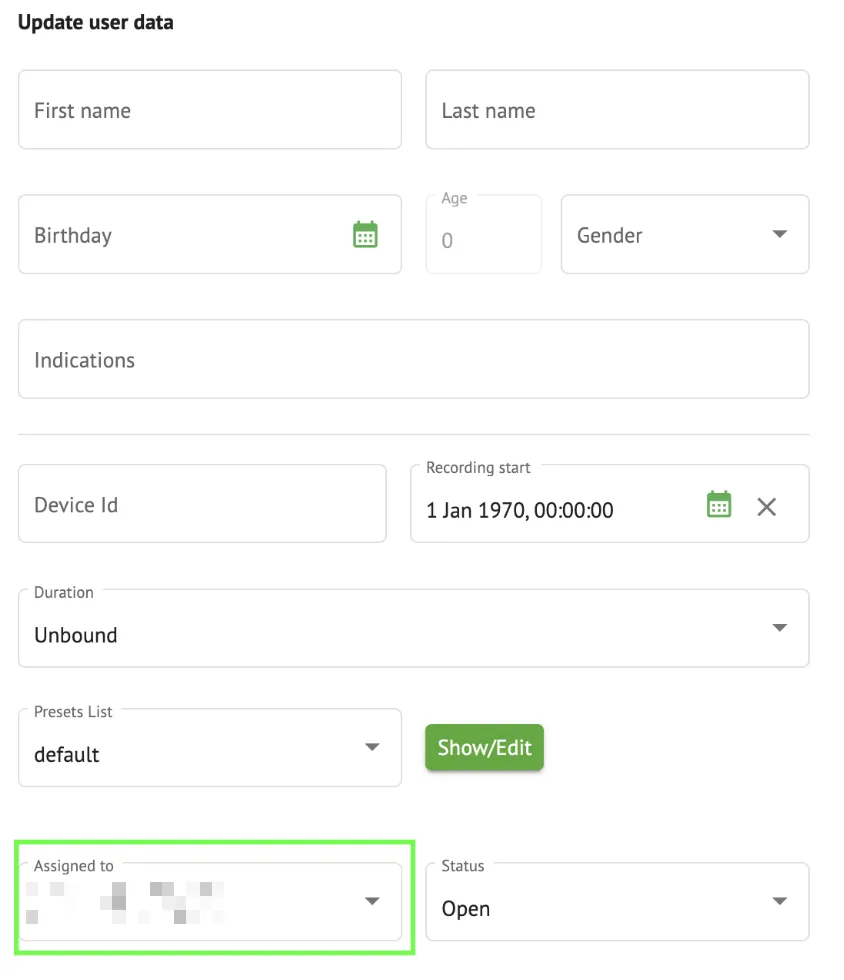 |
| Change Task Status | Enables a user to change Status of the task under the Edit personal data of the patient.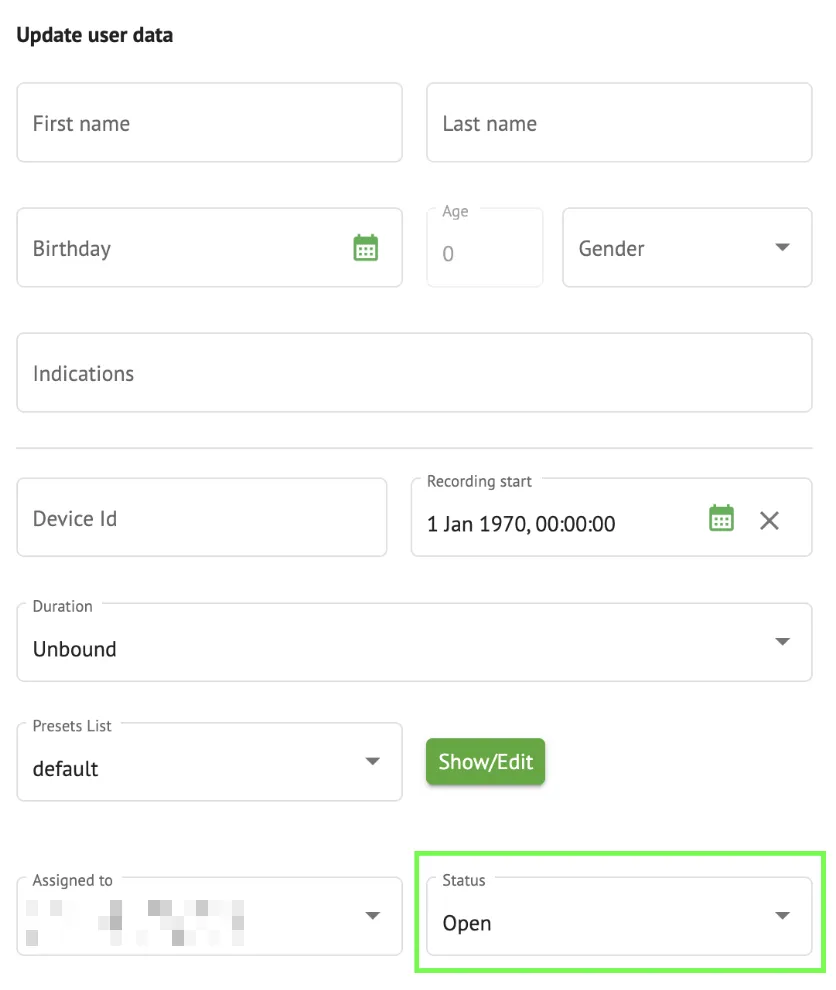 |
| Dashboard | |
| ECG View Access | Enables a user to access ECG task, observe the annotations created by the AI and observe the ECG report.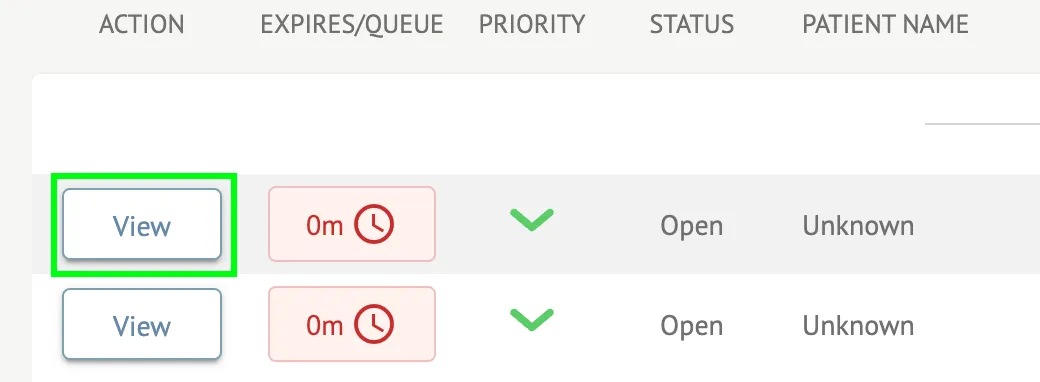 |
| ECG Review Access | Enables a user to edit the ECG task data, change the annotations, edit the report, save changes of the task and pre-approve the task. Note. Pre-approving the task becomes available after saving changes.  |
| Report Final Approve | Enables a user to approve the task, making the report downloadable. |
| Management | |
| Organization’s Management | Enables a user to edit and remove the organization. |
| Users Management | Enables a user to create, invite, manage and remove the users within the organization. |
| Roles Management | Enables a user to create, manage and remove the roles within the organization. |
| Billing Management | Enables a user to calculate spendings within the organization. |
Role management
Section titled “Role management”The option to create role is available under Roles section > Create role button:
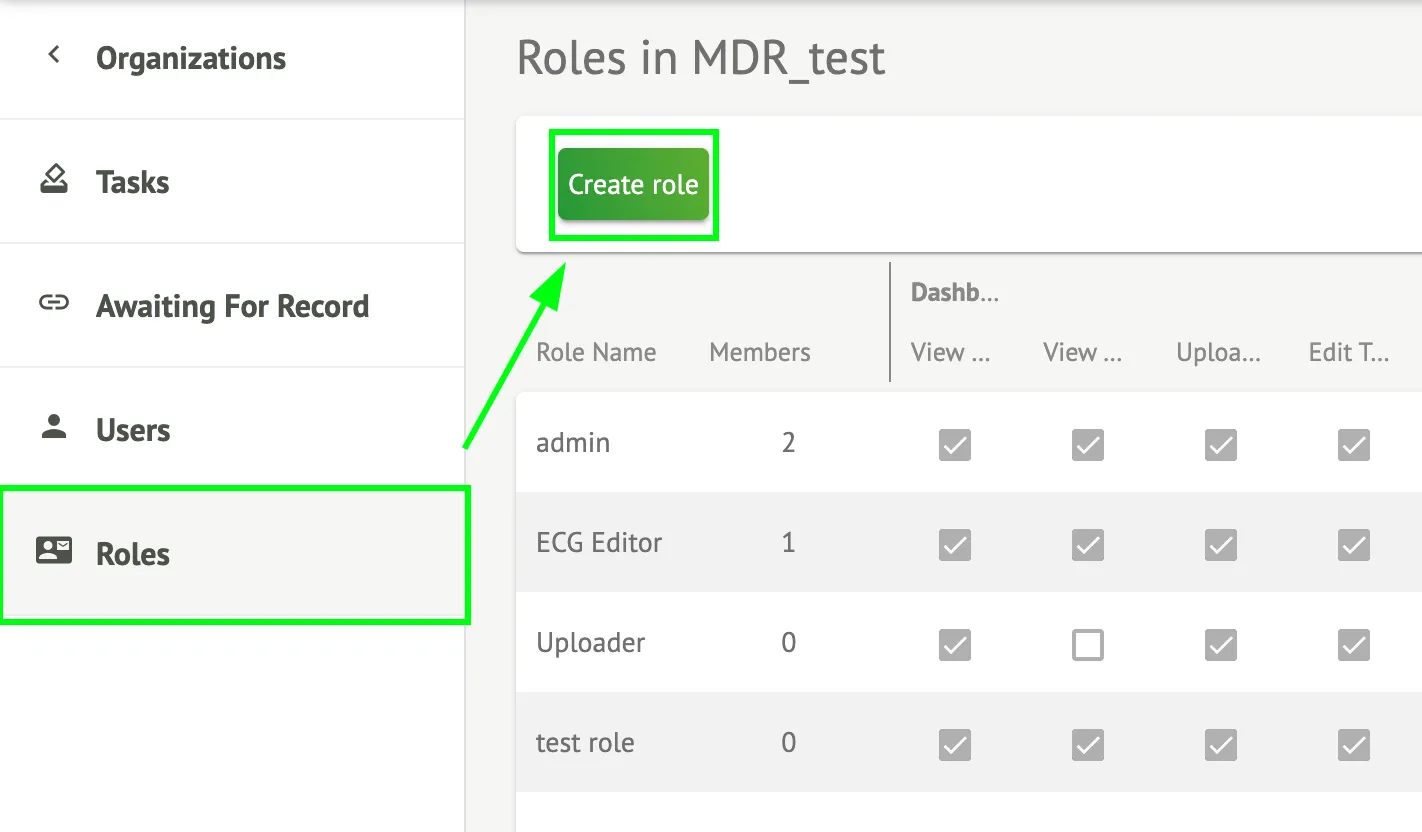
Cardio.AI shows the following screen when successful:
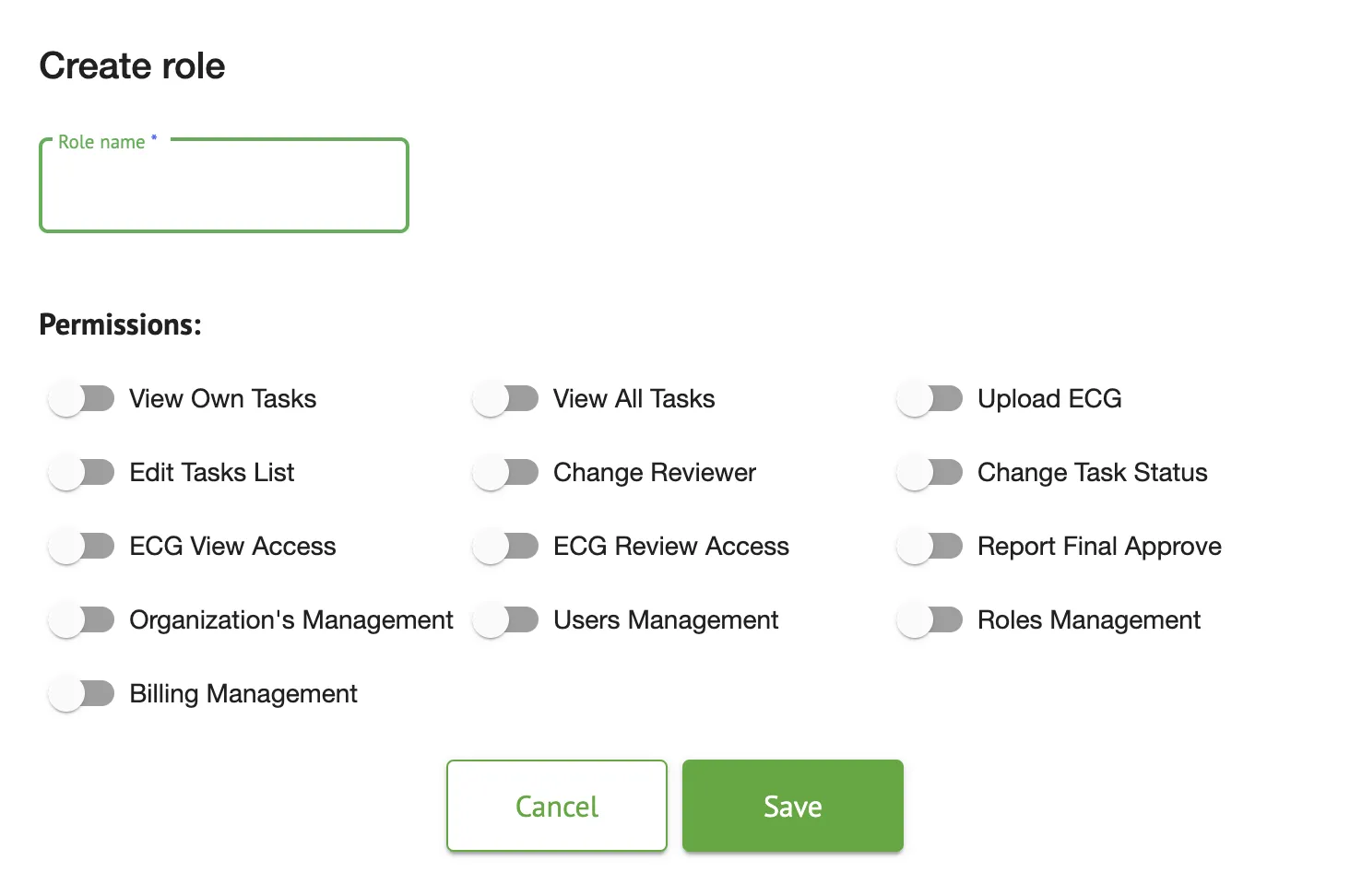
Role becomes created when setting Role name, switching the necessary permissions and clicking the Save button.
The option to edit the role is available under Roles > select Role > Edit role button:
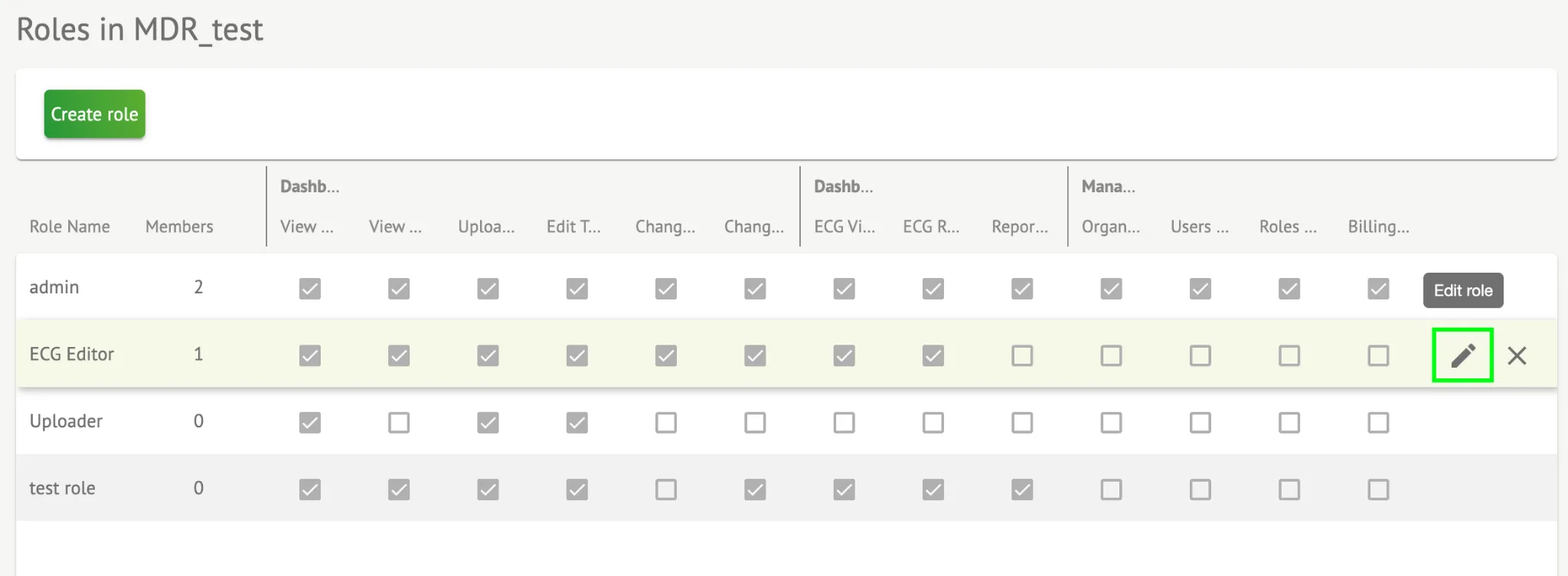
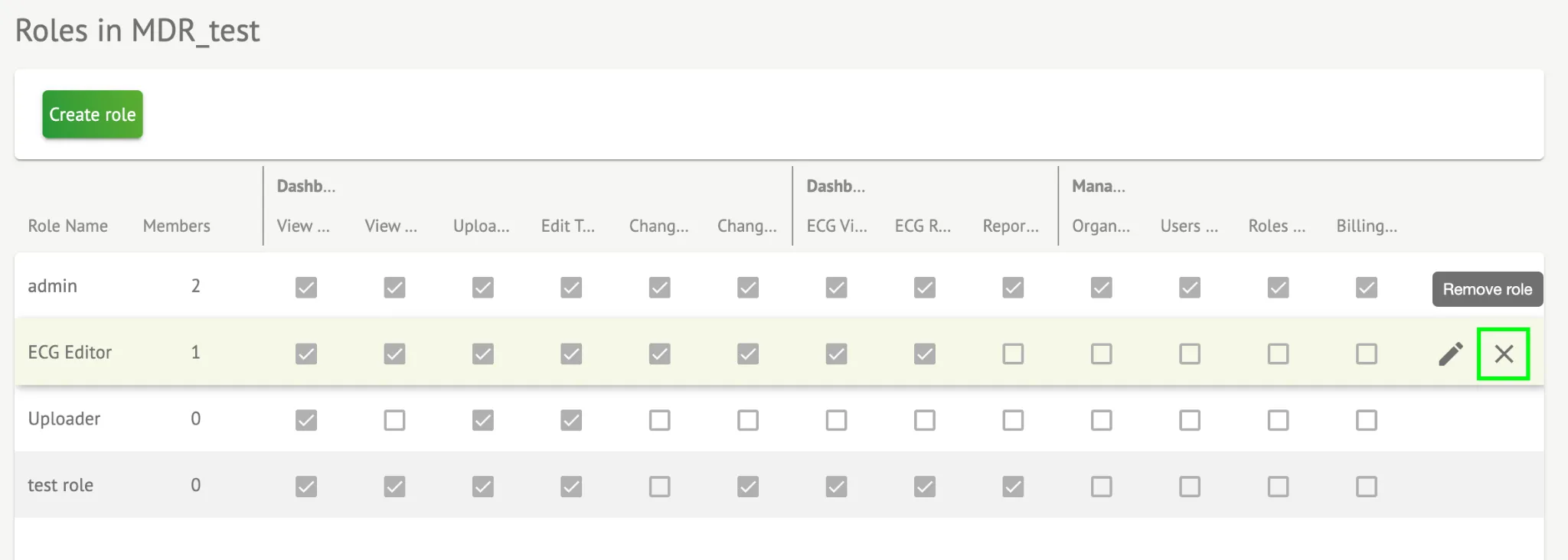
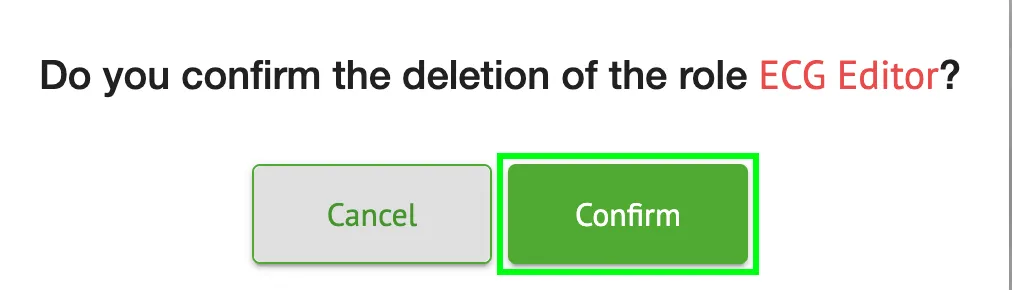
The option to remove the role is available under Roles > select Role > Remove role button > Confirm button: